

Enhances the Outlook's functionality by providing mass emailing features as well as letter customization. Includes protection from "reply-to-all" mistakes, SPAM protection, email header optimization, as well as HTML layout customization. For mass emailing, all the recipients will get a simple header while protecting the privacy of others.
Add-in Send Personally is designed to send messages to a great number of recipients via Microsoft Outlook (32 and 64-bit). Add-in offers an alternative method of sending messages from Outlook, separate message being created for each recipient. The final recipient will get no information about the other recipients. Moreover, he/she will see only his/her name and address in the "To" field, as if the message was sent only to him/her.
The main problem with sending messages through Outlook is that Outlook shows all the recipients in the message heading. If the recipient list is relatively small, this doesn't result in any considerable inconvenience. However, if a message is sent to hundreds of recipients, its heading size might many times exceed the size of the message text and all attachments.
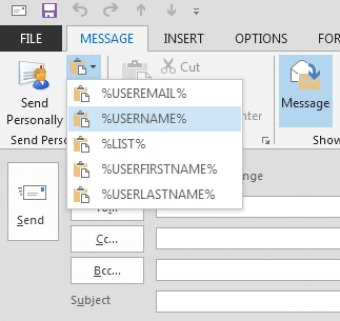
Send Personally offers an easy solution to the problem. And you won't need to perform any additional actions. The only thing you will have to do is to press the button "Send Personally" instead of the standard "Send" button. With Send Personally, no special setup procedures are needed: it is ready to use right upon installation.
Additional features: more



Comments